Background
I built a Mythbuntu machine out of a Dell PowerEdge 1600SC dual Xeon box with a Hauppauge PVR-500 dual TV tuner. Because I'm cheap *and* wanted to run a gigabit network, this machine also serves as the router for a gigabit switch (which was 1/3 the cost of a gigabit router).
I ended up getting 2 Hauppauge MediaMVPs. It's basically a small (1.5 x 6.5 x 5.5-inches), cheap 300MHz PowerPC that boots off the network and plays music, video, and pictures off your network. A group of developers released their own software available at: http://mvpmc.org that runs a small linux distro and can connect to: MythTV, ReplayTV, Hauppauge, VLC, SqueezeCenter (aka SlimServer) with various other bells and/or whistles.
I also have a few busted up laptops with no hard drives. I wanted to be able to netboot the MediaMVPs and use Mythbuntu's diskless server for the laptops. (I let the kids use one for flash based games and I use one in our home theater.)
There wasn't great documentation on how to do this so, hopefully this helps people out somewhat in the future. There are some decent guides to get MVPMC working with Mythbuntu but, they use the aTFTP server which conflicts with Mythbuntu's diskless server.
HOW-TO:
DHCP:
On the Mythbuntu media server, go to:
- Applications >> System >> Mythbuntu Control Centre >> System Roles.
- Check "Diskless Server" and "Add DHCP server"
- Click "Apply"
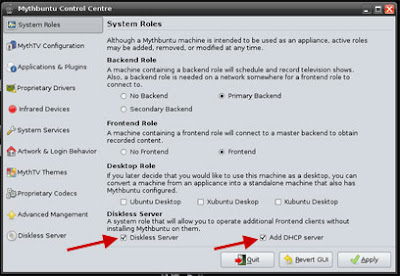
A progress bar will whir away and eventually the "
Mythbuntu Control Centre" dialog will come back. The "Diskless Server" option on the left side menu should now be available. When you go to it, there is a drop-down menu for "CPU architecture of your clients". Select "i386". Click "Build Image" and "Apply". This process can take a long time and sometimes fails.
To check, go to: Applications >> Accessories >> Terminal.
At the prompt type:
ls /opt/ltsp
If you see:i386 images
... you should be all set. If the "images" directory is missing, the build failed. If the build failed, at the command prompt type:
sudo rm -rf i386
sudo ltsp-build-client --mythbuntu --mythbuntu-copy-user-credentials
If the first command fails, you can try going back to the Myth Control Centre. Diskless Server >> CPU architecture of your clients: >> i386 >> Delete Image >> Apply.
DO NOT run the second command from a root shell (only run it through sudo) or it will take a long time and eventually fail.
Moving along, commandline:
sudo -s
vim /etc/dhcp3/dhcpd.conf
[or if you don't like the vi editor (wha?) use something else]
make the file look like this:
authoritative;

log-facility local7;

option domain-name              "madsonclan.net";
option subnet-mask              255.255.255.0;
option domain-name-servers 65.24.7.10, 65.24.7.11;

allow bootp;
allow booting;

#option ip-forwarding    false;  # No IP forwarding
#option mask-supplier    false;  # Don't respond to ICMP Mask req

subnet 192.168.0.0 netmask 255.255.255.0 {
option routers        192.168.0.1;
range 192.168.0.100 192.168.0.250;
option broadcast-address 192.168.0.255;
option subnet-mask 255.255.255.0;
option root-path "/opt/ltsp/i386";
if substring( option vendor-class-identifier, 0, 9 ) = "PXEClient" {
filename "/ltsp/i386/pxelinux.0";
} else {
filename "/ltsp/i386/nbi.img";
}

}

group {
next-server 192.168.0.1;          # IP address of your TFTP server

host mvp { # NOTE: Change the hardware ethernet to the MAC address of your actual MVP
hardware ethernet 00:0d:fe:39:21:04;
fixed-address 192.168.0.50;
filename "dongle.bin.mvpmc";
option root-path "/home/mvp,rsize=4096,wsize=4096,nolock";
}
host mvp2 {
hardware ethernet 00:0d:fe:39:21:06;
fixed-address 192.168.0.51;
filename "dongle.bin.mvpmc";
option root-path "/home/mvp,rsize=4096,wsize=4096,nolock";
}
}
[substitutions]
madsonclan.net = yourdomain.com or make something up
65.24.7.10, 65.24.7.11 = your ISP dns servers
192.168.0.XXX = your internal IP addresses
00:0d:fe:39:21:04/06 = the MAC address of you MediaMVP (sticker on the bottom)
MVPMC:Go get the latest dongle.bin from:
mvpmc.organd then:
mkdir /tftpboot
cp [DOWNLOADED_FILE] /tftpboot/dongle.bin
dd if=/tftpboot/dongle.bin of=/tftpboot/dongle.bin.ver bs=1 count=40 skip=52
vim /tftpboot/dongle.bin.config
file should like:
# set up host environment variable
HNAME='mvp_uno'
export HNAME

# time stuff
TZ='US, Central: CST+6CDT,M3.2.0/2,M11.1.0/2'
export TZ
echo "TZ='US, Central: CST+6CDT,M3.2.0/2,M11.1.0/2'" >; /etc/shell.config
echo "export TZ" >> /etc/shell.config
NTP=time-a.nist.gov

# create an /etc/hosts file
echo "127.0.0.1 localhost localhost" >> /etc/hosts
echo "192.168.0.1 media-server media-server" >> /etc/hosts
echo "192.168.0.1 eteo eteo" >> /etc/hosts #important! or mythtv won't play. replace eteo w/ myth server hostname

# load settings
. /etc/udhcpc.config
SETTINGSDIR=/tmp/settings
mkdir -p ${SETTINGSDIR}
SETTINGS=${SETTINGSDIR}/settings
RSETTINGS=settings.${HNAME:-$IP}
LASTSAVED=${SETTINGSDIR}/.lastsaved
touch $LASTSAVED
tftp -g -r $RSETTINGS -l $SETTINGS $SERVER;

# mounts (change for your network)
# i use nfs for linux and cifs for xp
mkdir /media
mkdir /media/sde1
mkdir /media/sda1
mkdir /media/sdb1
mkdir /media/quinn
mount -t nfs -o nolock,rsize=4096,wsize=4096,nfsvers=3 192.168.0.1:/media/sde1 /media/sde1
mount -t nfs -o nolock,rsize=4096,wsize=4096,nfsvers=3 192.168.0.1:/media/sda1 /media/sda1
mount -t nfs -o nolock,rsize=4096,wsize=4096,nfsvers=3 192.168.0.1:/media/sdb1 /media/sdb1
#mount -t nfs -o nolock,rsize=4096,wsize=4096,nfsvers=3 192.168.0.1:/media/quinn /media/quinn
mount.cifs //192.168.0.23/quinn /media/quinn/ -o user=someuser,pass=somepass,rsize=34000

# save settings
(
while true; do
if [ $SETTINGS -nt $LASTSAVED ] ; then
  tftp -p -l $SETTINGS -r $RSETTINGS $SERVER;
  touch $LASTSAVED;
fi;
sleep 300;
done
)&

# mvpmc settings

#known working
#mvpmc -f /etc/helvB14.pcf -o composite -S 0 -D 192.168.0.1:0 -R 192.168.0.1 -s 192.168.0.1 --vlc 192.168.0.1 --vlc-vopts svcd -y 192.168.0.1 -T mythconverg -u mythtv -p 8DelSgNw -b /eteo/livetv --weather-location USWI0164 &

#real-world
mvpmc -f /etc/helvB14.pcf -o svideo -a 16:9 -S 0 -R 192.168.0.1 -s 192.168.0.1 -y 192.168.0.1 -T mythconverg -u mythtv -p myMythTvPassowrd-b /eteo/livetv --weather-location USWI0164 --vlc 192.168.0.1 --vlc-vopts svcd &
Change IPs, hostnames, drive mappings, weather code, etc for your needs.
TFTP/NBD:vim /etc/inetd.conf
tftp  dgram  udp  wait  root  /usr/sbin/in.tftpd /usr/sbin/in.tftpd -s /tftpboot
9571           stream  tcp     nowait  nobody /usr/sbin/tcpd /usr/sbin/ldminfod
9572                    stream  tcp     nowait  nobody /usr/sbin/tcpd /usr/sbin/nbdswapd
2000               stream  tcp            nowait  nobody /usr/sbin/tcpd /usr/sbin/nbdrootd /opt/ltsp/images/i386.img
vim /etc/nbd-server/config
[generic]
# If you want to run everything as root rather than the nbd user, you
# may either say "root" in the two following lines, or remove them
# altogether. Do not remove the [generic] section, however.
   user = nbd
   group = nbd

# What follows are export definitions. You may create as much of them as
# you want, but the section header has to be unique.
[export]
   exportname = /opt/ltsp/images/i386.img
   port = 2000
If you are running a firewall, poke holes in it for tftp(:69), nbd(:2000), mythtv, etc. I recommend you make all ports open for the internal network.
/etc/init.d/dhcdbd restart
/etc/init.d/dhcp3-server restart
/etc/init.d/nbd-server restart
/etc/init.d/xinetd restart
If you are running a firewall, you need to disable when the MediaMVP first boots. I can't explain why but, I'm pretty sure it's an issue at the hardware level. When you power off the system via the remote and turn it back on, you don't need to mess with the firewall. However, if you lose power and you see the big blue MediaMVP initial boot screen, you need to disable the firewall until you see "Application Loading". If you don't the MediaMVP will not be able to get an IP address or find the Mythbuntu server.
Oh yea:
I may be missing a few things in this HOW-TO. If you are running the H3 wireless or have some other goofy setups, you may want to refer to this HOW-TO:
https://help.ubuntu.com/community/MythTV/MediaMVP_FrontendOtherwise, you should be pretty much good to go at this point. Any laptop or other i386 arch machine you plug-in and netboot off of should get Mythbuntu via squashfs read-only. The cool thing is that the server assigns a AUFS share via NFS based on the MAC address of the machine. If you save anything to the desktop, make settings changes, install software, etc and reboot, those changes will remain intact. If any methyl-ethel-bad-stuff happens, take a look in: /var/cache/mythbuntu-diskless/overlay and nuke the directory that corresponds to MAC address and it will rebuild itself on the next boot.
Still have problems:This forum thread is pretty invaluable and if all else fails, ask them:
http://ubuntuforums.org/showthread.php?t=711079

